How Recall works
Recall turns a folder of Overwatch screenshots into a personal, filterable match history. This page walks through the pipeline so the Settings reference, Filtering guide, and Unknown screenshots chapters make sense in context.
What it looks like
| Matches view | Match detail panel |
|---|---|
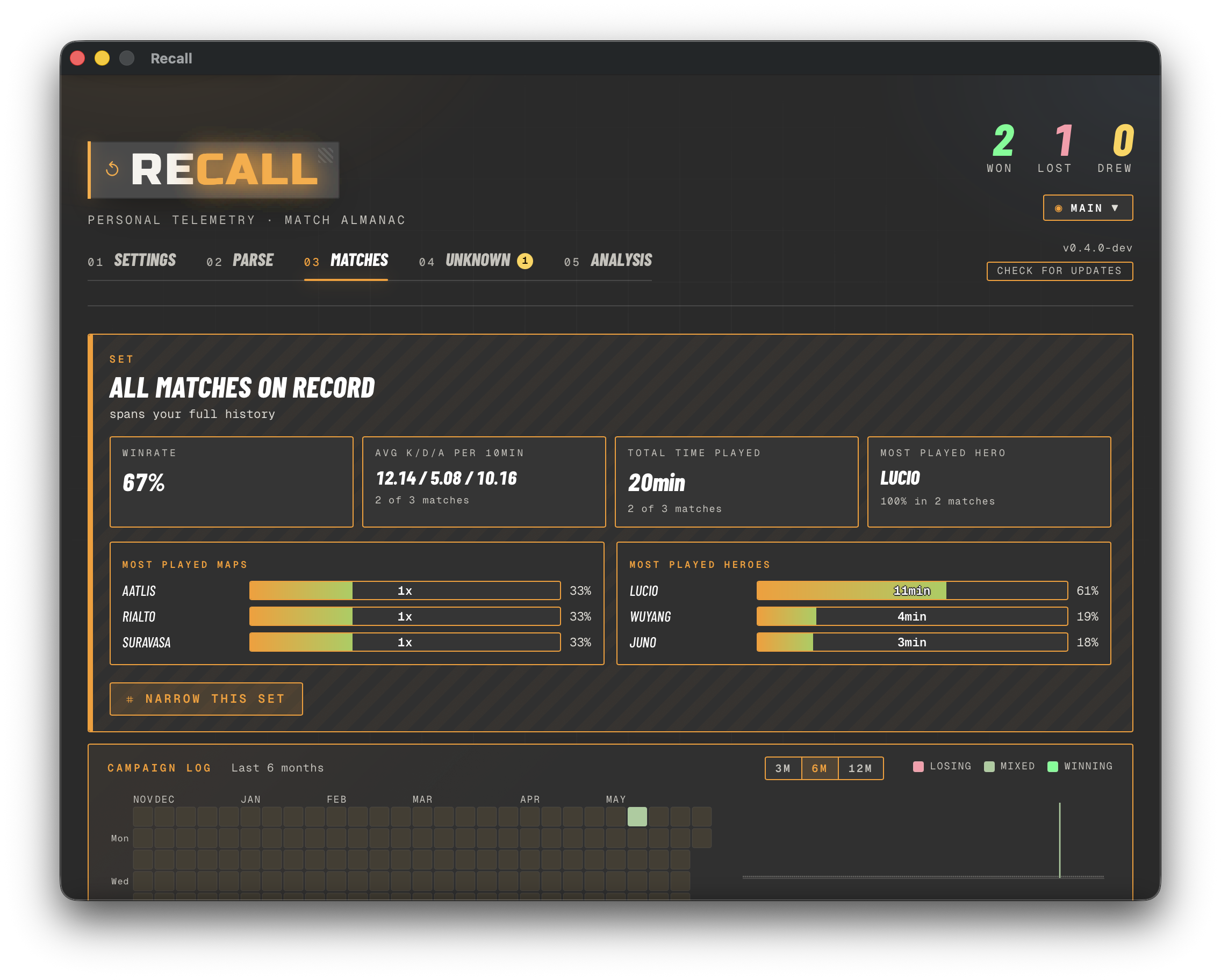 The Matches tab — a customizable dossier headline (W/L/D, win rate, top maps/heroes, active-clause chips), the Campaign Log heatmap + Geography (Map × Role) band, and the compact leaf-row list below.
|
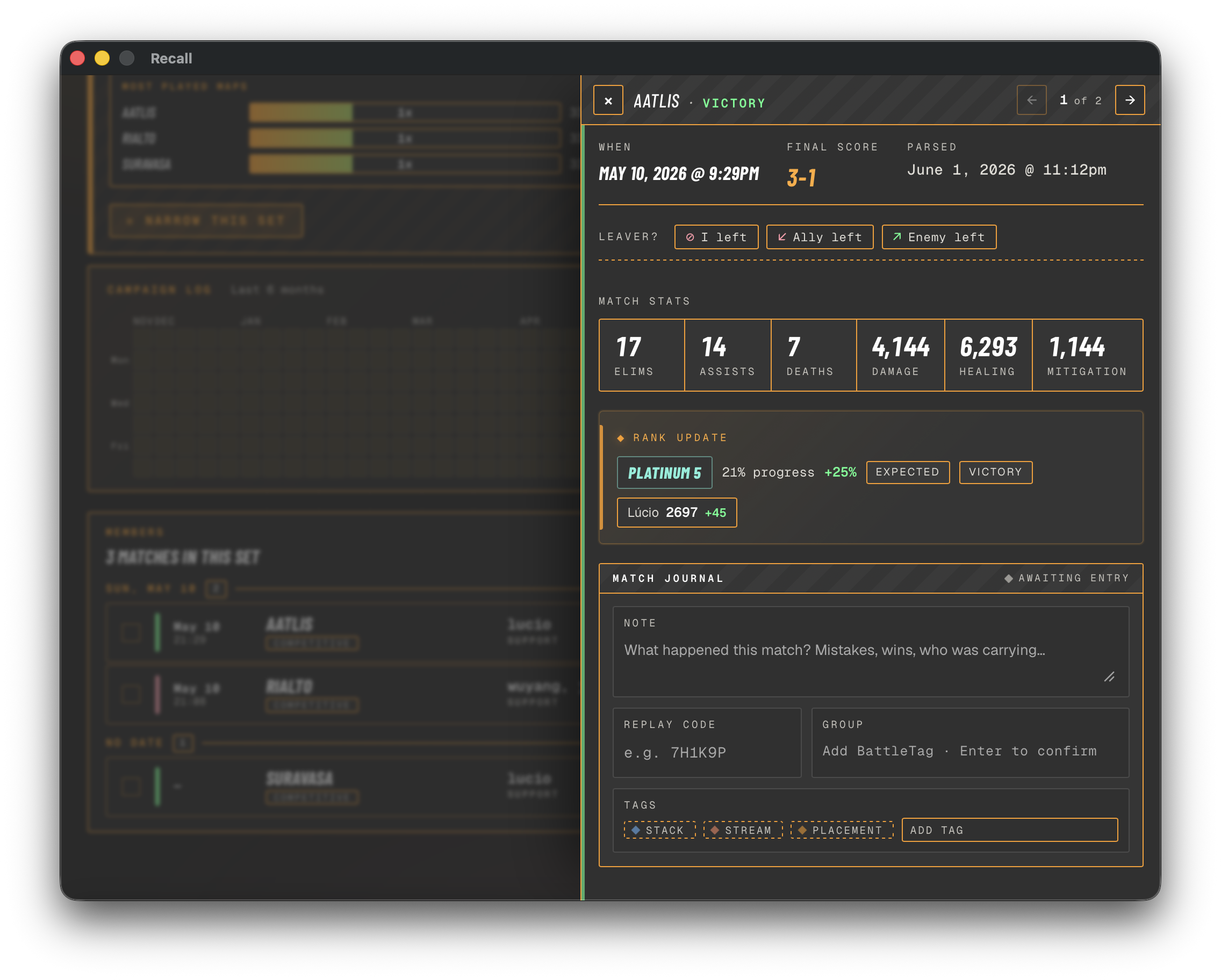 Clicking a row (or pressing
 e) slides in the per-match dossier — annotation, stats, rank update, heroes played, source screenshots.
|
The rest of this chapter is the pipeline that fills those views.
The pipeline in one paragraph
You play a comp match. After it ends, you tab through the post-match screens (SUMMARY, TEAMS screen, PERSONAL tab) and press the in-game Print Screen binding on each. Overwatch saves the PNG files into your screenshots folder. Recall watches that folder, runs each new PNG through Tesseract OCR to read the on-screen text, classifies it by screenshot type (rank / summary / teams / personal), extracts the fields it can (map, mode, hero, eliminations, deaths, SR change, …), and folds 3–5 screenshots from the same match into one match record in its local database. The Matches tab then shows that record alongside every other match you've parsed — filterable by hero, map, mode, win/loss, and any combination of date range or play-time threshold.
The four screenshot types
Recall recognizes four post-match screen layouts in Overwatch 2. You don't need to capture all four for a match to land — but more captures = more fields populated:
| Screen | What it shows | Fields Recall extracts |
|---|---|---|
| SUMMARY | Match overview, top heroes, performance summary | Map, playlist, game mode (control/push/escort/…), role, primary hero, victory/defeat, final score, date, finish time, game length, performance per-10-min averages |
| TEAMS screen | Both teams' stats side by side | Eliminations / assists / deaths, damage, healing, mitigation |
| PERSONAL | One hero's detailed stat grid (3×3) | Hero-specific stats (e.g. Juno's pulsar_torpedoes_damage, Mizuki's binding_chain_accuracy) |
| RANK | Competitive ladder badge + per-hero SR | Rank tier + level, rank progress % (negative on a demotion screen), win/loss, match modifiers (expected / underdog / demotion protection / …), per-hero SR + change |
If you swapped heroes mid-match, Overwatch shows a separate PERSONAL tab per hero — Recall captures each one and merges them into the same match record. The first hero in the SUMMARY's "Heroes Played" list becomes the match's primary hero in filters and card headers.
The PERSONAL tab also has an "All Heroes" sub-tab showing your combined totals across every hero. You don't need to capture it — those totals duplicate the TEAMS screen, and the sub-tab's stat-card icons confuse the OCR. If you do screenshot it, Recall recognizes and quietly skips it (no re-OCR on later runs) rather than dropping it on the Unknown tab.
What each type looks like
Real examples from Recall's parser-regression fixture set — the same
PNG files live under testdata/ in the repo and are the inputs
TestParseScreenshot_GoldenFiles runs against on every commit. Click
any image for the full-resolution source.
| SUMMARY | TEAMS screen |
|---|---|
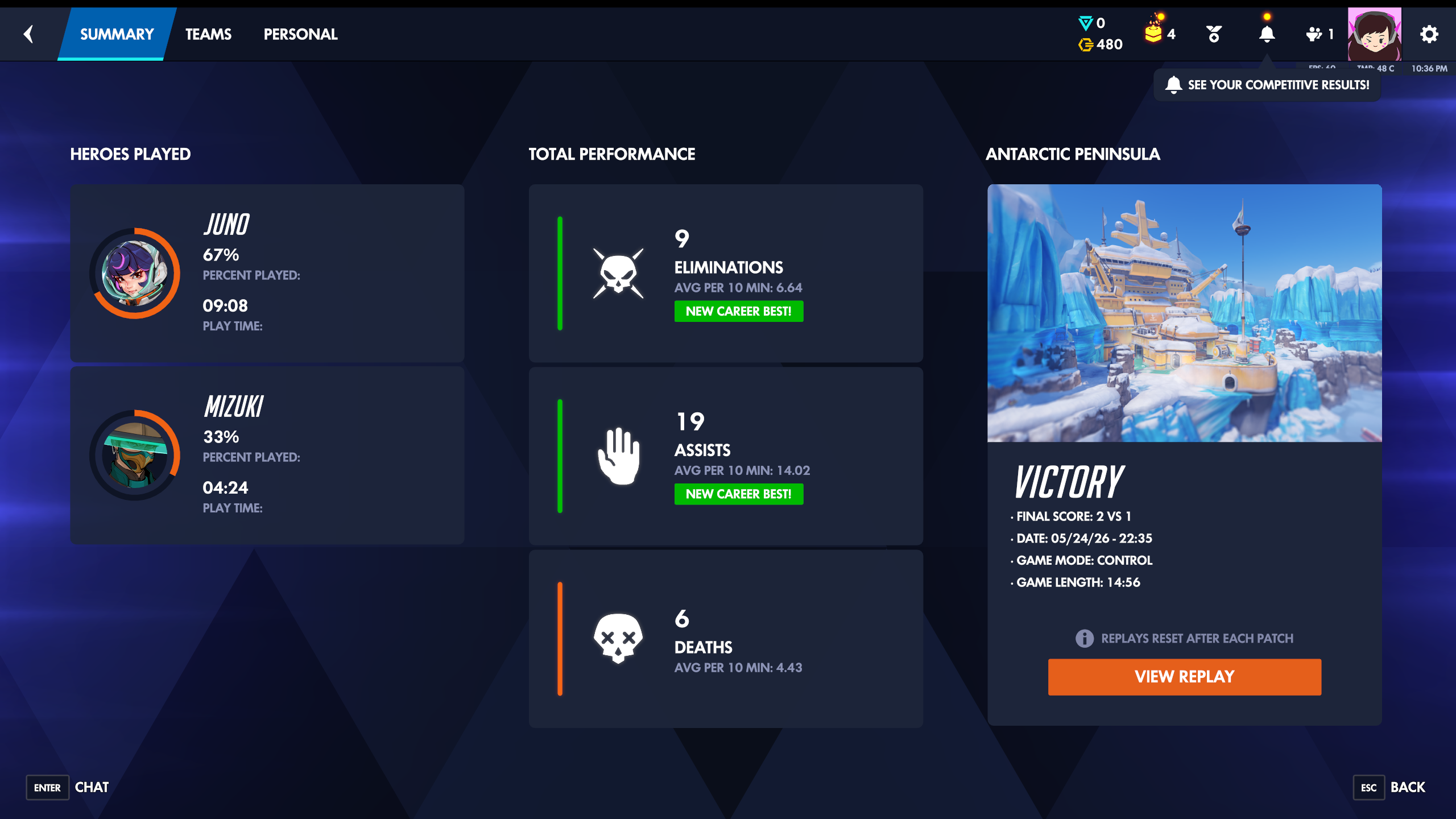 Antarctic Peninsula · comp victory 2-1. The map + game mode + heroes-played list + per-10-min averages all come from this tab.
|
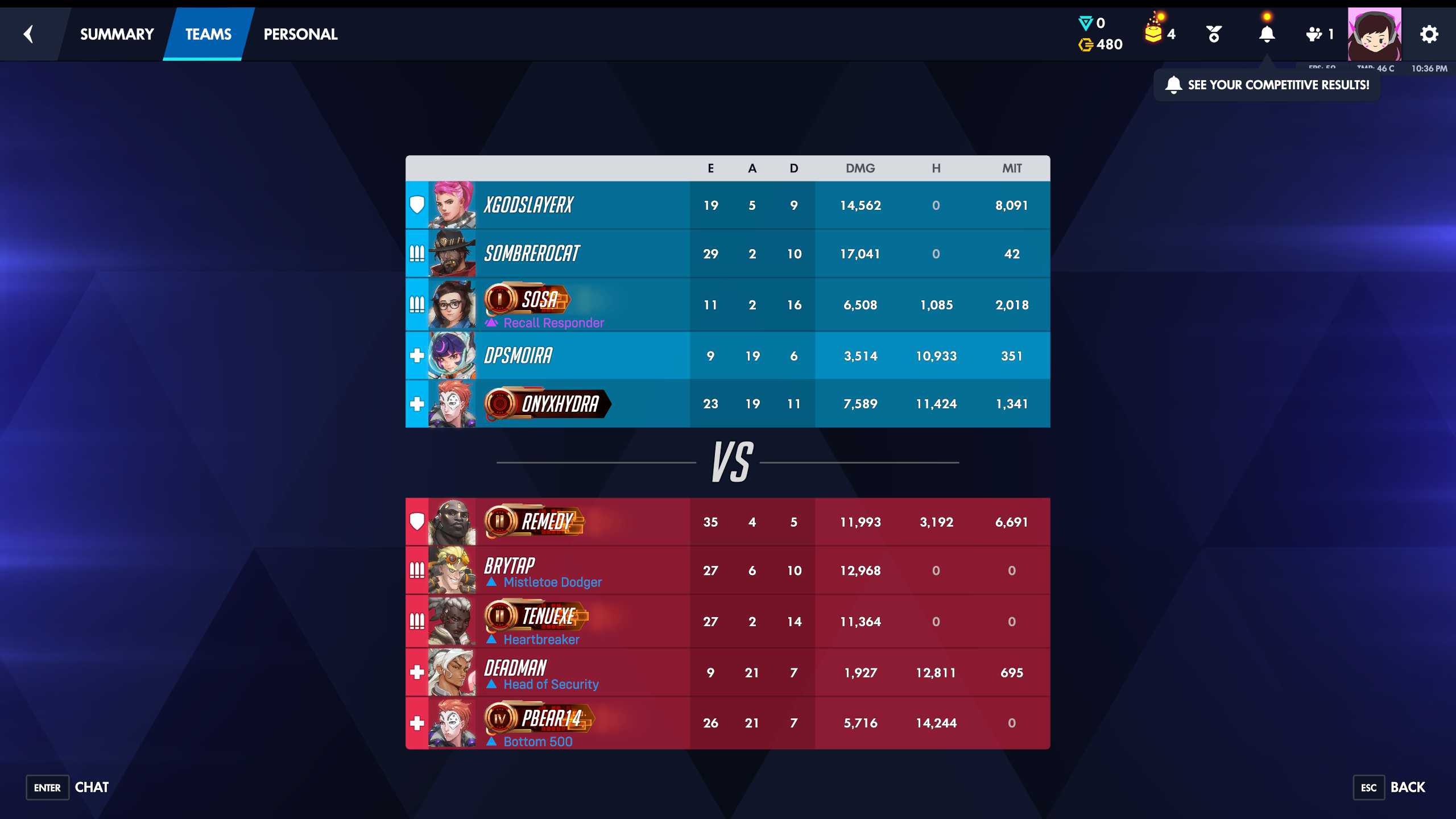 Same match. Eliminations / assists / deaths / damage / healing / mitigation come from the highlighted row + the right-hand stat panel.
|
| PERSONAL (one per hero played) | |
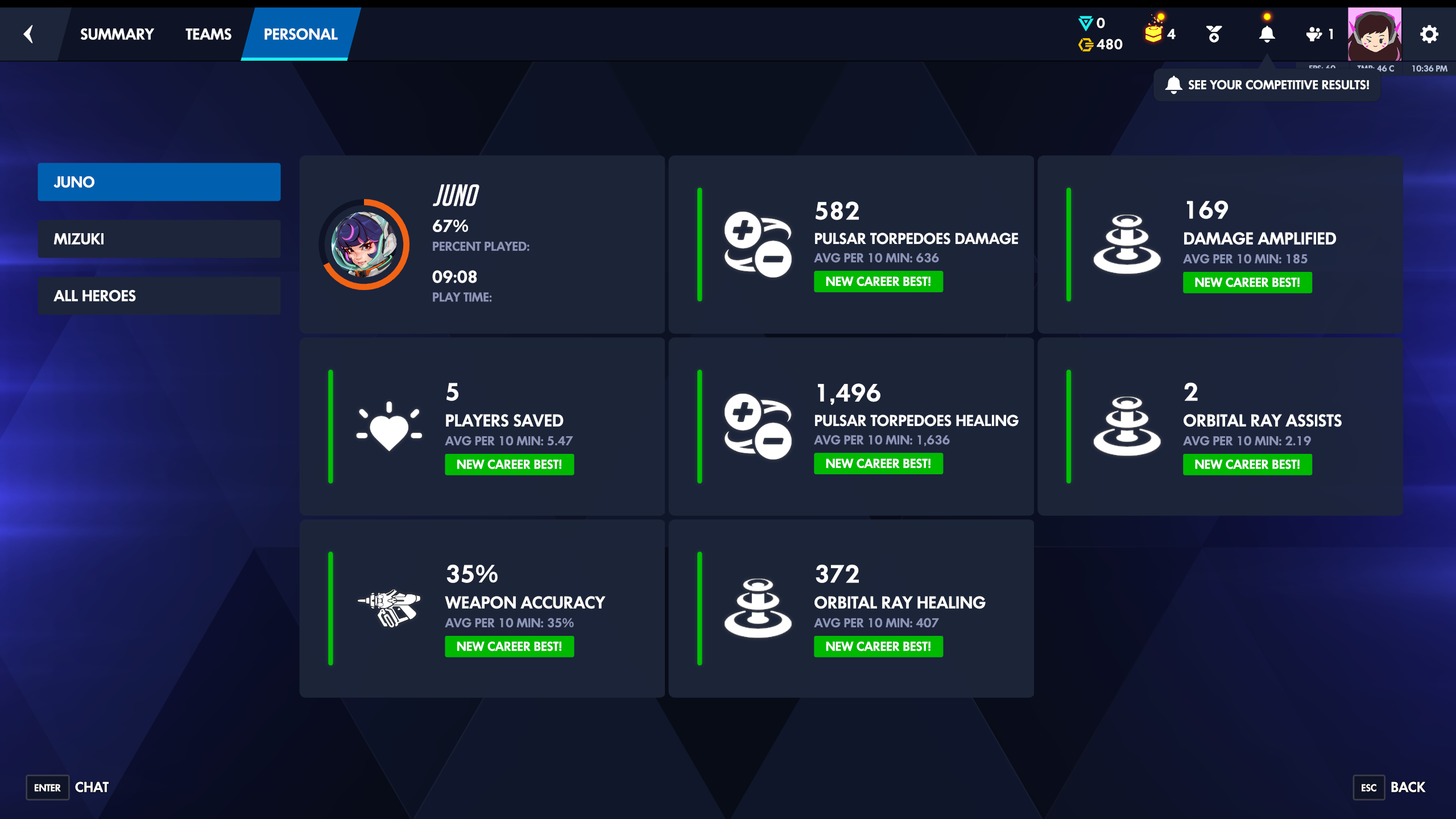 Juno's PERSONAL tab. The 3×3 grid populates hero-specific stats (pulsar torpedoes damage, orbital ray healing, players saved, weapon accuracy).
|
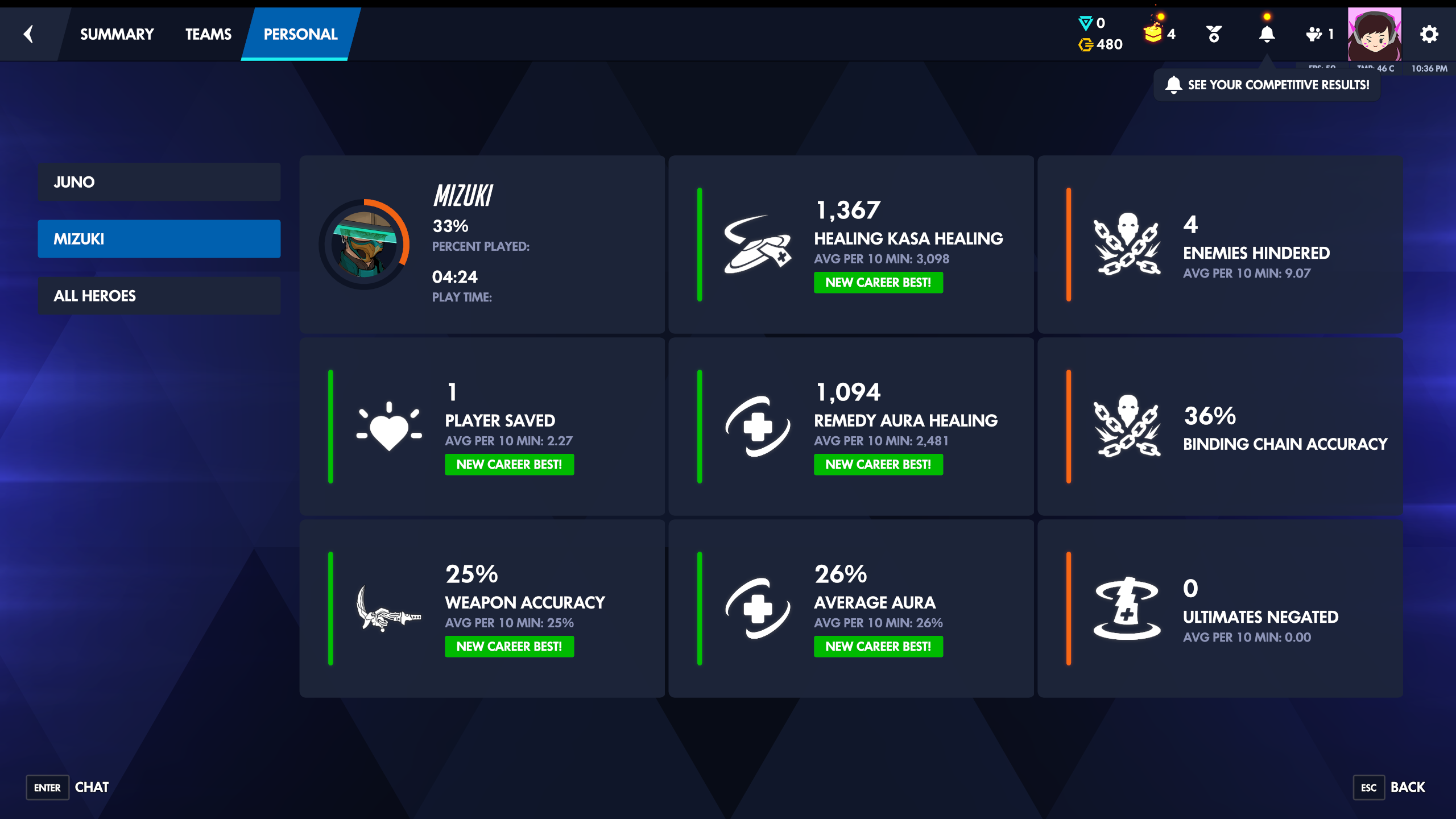 Mizuki's PERSONAL tab from the same match — the player swapped from Juno (67% played) to Mizuki (33% played). Recall captures one PERSONAL per hero and merges them into the same match record.
|
| RANK (competitive progress) | |
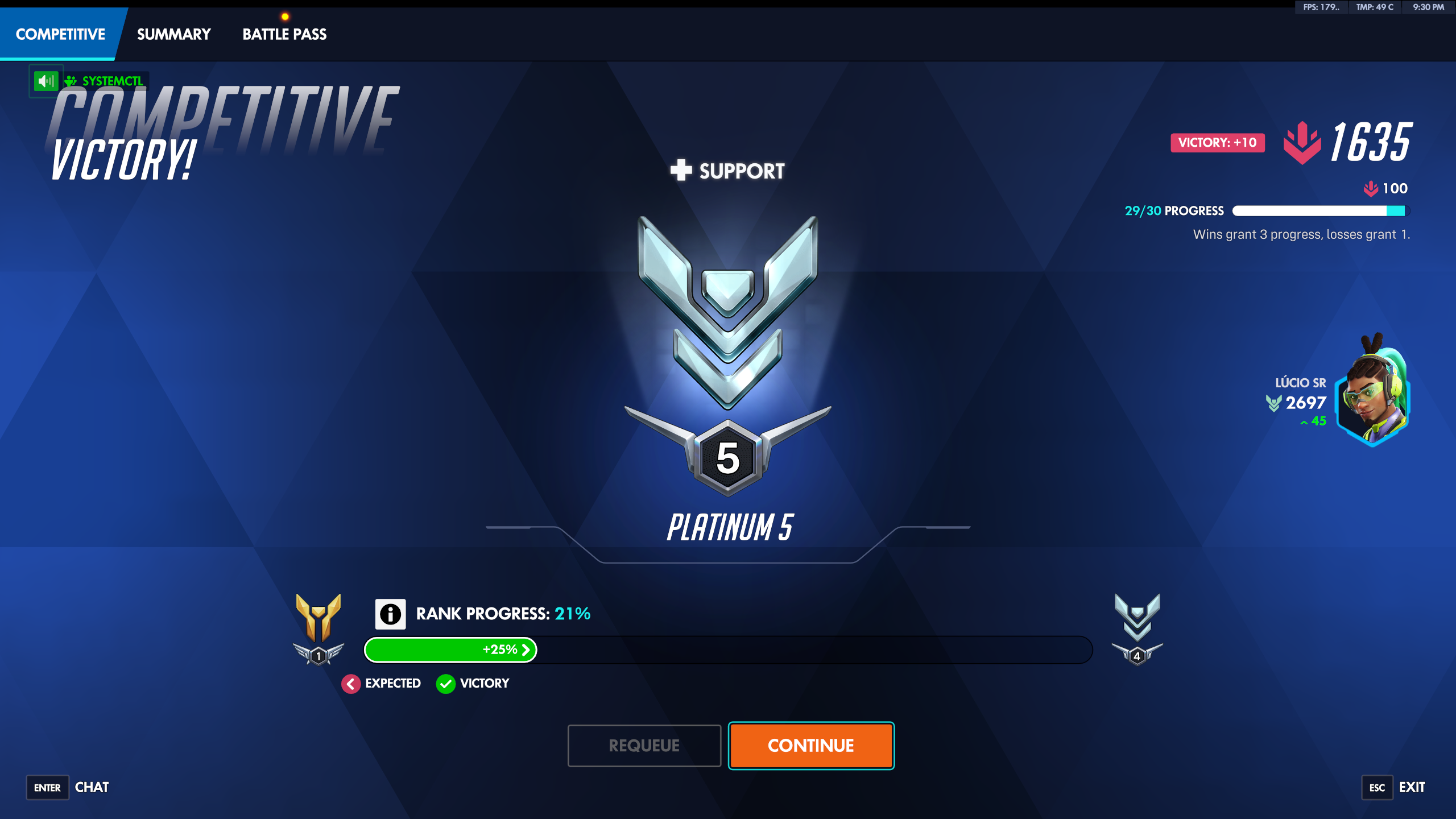 A win — Platinum 5, +21% rank progress, Lúcio SR 2697 (+45). Tier, level, progress %, modifiers (expected · victory), and per-hero SR all come from this screen.
|
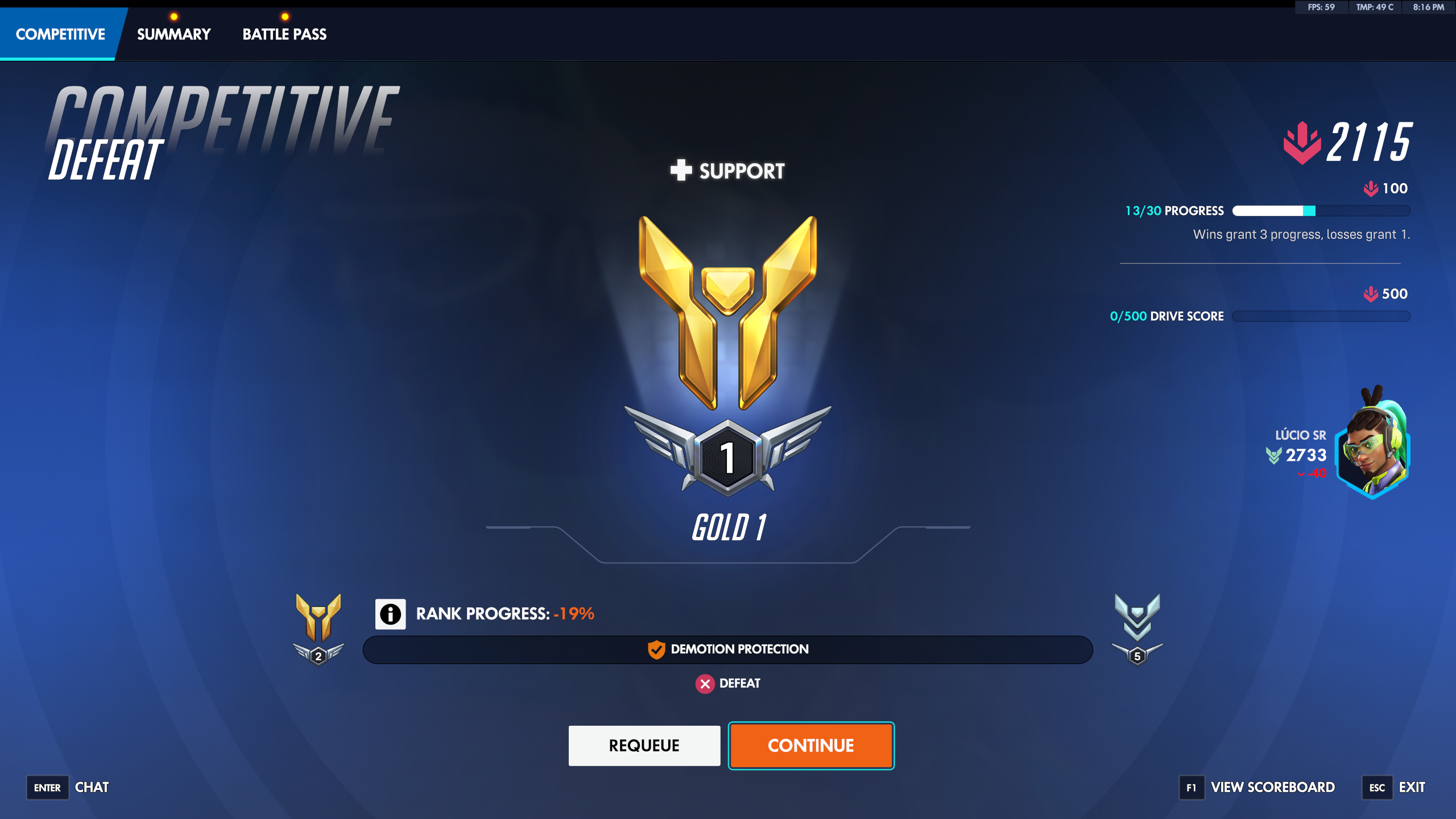 A loss under demotion protection — Gold 1, -19% rank progress, Lúcio SR 2733. Recall reads the negative progress and the demotion shield so a rough run still parses correctly.
|
Expected workflow
First-time setup (about 2 minutes)
- Install Recall — see the Windows install guide.
- Install Tesseract 5.x — the OCR engine Recall shells out to. The install guide has the UB-Mannheim installer steps.
- Point Recall at your screenshots folder. Open Recall and go to Settings → Directories → Change Folder…. The default Overwatch path is in the install guide.
That's it for setup. Settings → Engine should now show Detected with a green dot and Tesseract's version.
Day-to-day
- Play matches and capture post-game screens. Bind a screenshot key in Overwatch (Options → Controls → Take Screenshot — most people use Print Screen or F12). Capture on the post-match screens, not mid-game: the post-match SUMMARY is the one that carries the map, result, and finish time Recall uses to pin a match and tell two apart, so it's the anchor everything else attaches to (the in-game scoreboard contributes combat stats only). See the FAQ for why this matters. After every comp match, tab through SUMMARY → TEAMS → PERSONAL × however many heroes you played → optionally RANK, pressing the key on each.
- Recall picks them up. If you've armed Parse → Watch Folder (the recommended setting), Recall debounces 60 seconds after the last new PNG and auto-parses the batch. Otherwise click Parse → Run Parse when you're ready.
- Browse the Matches tab. Each match appears as a card with map,
primary hero, e/a/d, and result. Click a card (or the chevron, or
press
eon the focused row) to open the detail panel — a slide-in surface on the right with the full readout: When · Final Score · Parsed, your match journal (notes / replay / squad / tags — playing a stack session? Apply previous on the journal header copies the squad + tags from your last annotated match into the draft, and nothing saves until you hit Confirm), the leaver + thrower choosers, the Match Stats grid, a Rank Update card (when a rank screenshot was captured for this match), Heroes Played, and the source screenshots. Use←/→to step through the filtered list without closing the panel;↑/↓scroll inside the panel. Click a source screenshot inline-preview to enlarge it fullscreen (× / Esc / backdrop click closes). Press?for the full keyboard cheatsheet. Use the Filter matches panel to slice the view by any combination of hero, map, role, result, date, tag, or minimum play time. - Tune the workspace to taste. The dossier's KPI + breakdown widgets are customizable — hover any widget for a drag-grip (reorder) and a × (remove), and use the Add menu to re-add a removed widget or Reset to the install default. The two full-width bands below the dossier — the Campaign Log win/loss calendar + brushable sparkline, and the Geography Map × Role heatmap — are themselves removable + reorderable sections (both on by default; the dossier always stays on top). The Geography band has its own gear to filter the heatmap down to specific roles, map types, or maps. See Filtering and grouping for the details.
Editing and hand-entering matches
OCR isn't the only way data gets in, and it isn't always right. Two affordances cover the gaps:
- Edit a parsed field. OCR occasionally misreads a damage number or mislabels a stat. In the detail panel, click any combat stat (Elims, Assists, Deaths, Damage, Healing, Mitigation) to edit it in place — Enter saves, Esc cancels. Your edits are kept separate from the scanned values: an edited field shows a small ✎ you can click to revert just that field, and the panel header gains a Reset to OCR button that discards every edit on the match. Nothing overwrites the original parse, so a reset always restores exactly what was scanned.
- Add a match by hand. No Tesseract? Click Add match in the Matches toolbar and fill in what you remember: map, competitive or quick play, role or open queue, the heroes you played (the first is your primary), the result, when it was played (defaults to now), and — for comp — your rank and how much it moved. Save, and the match joins your history like any other. The right-side panel (reviewed, replay code, squad, tags) works on it exactly as it does on a scanned match.
Every match carries a source badge so you always know where its data came from:
- OCR — parsed from screenshots, untouched.
- Edited — parsed, then corrected by you (hover to see how many fields).
- Manual — hand-entered, no screenshots.
Most people are one type or the other — all-OCR or all-manual — but you can freely mix them: edit a hand-entered match, or hand-correct a scanned one.
Supported capture sources
Four capture-tool filename shapes are recognized end-to-end (timestamp extraction + correlation by per-second matching), each with auto- detected default folders on Windows:
| Source | Example filename | Auto-detect path (Windows) |
|---|---|---|
| Nvidia Overlay | Overwatch 2 Screenshot 2026.05.10 - 19.57.14.89.png |
Videos\NVIDIA\Overwatch 2 |
| OW default PrntScn | ScreenShot_26-06-07_22-59-52-000.jpg |
Documents\Overwatch\ScreenShots\Overwatch |
| Windows Snip tool | Screenshot 2026-06-07 224855.png |
Pictures\Screenshots |
| Steam in-game F12 | 20260609000031_1.jpg |
<SteamInstall>\userdata\<id>\760\remote\<OW-app-id>\screenshots |
If you use a different capture tool or a synced folder, point Recall at wherever it writes to — the filename shape, not the folder, is what the parser uses to correlate the timestamp.
For the cleanest parse, capture high-quality PNG screenshots with Overwatch's default colors. Of the sources above, the Nvidia overlay and the Windows Snipping Tool save PNG (lossless); the Overwatch PrntScn default and Steam's F12 save JPG, and heavy JPG compression blurs the small stat numbers — the performance card can over-read eliminations, and a badly-compressed capture can miss classification and land in the Unknown tab. The OCR is also tuned to Overwatch's stock UI colors (it locates your scoreboard row by its blue highlight and detects the magenta COMPETITIVE badge), so non-default colourblind palettes can break detection — only the default colors are known to work.
A fifth source can be added by editing
pkg/parser/screenshot_sources.yaml (see the file's header
comments for the regex + capture-group rules); no Go edits required.
The same YAML rides the live-data channel that pushes new heroes/maps
between Recall releases — see
Updates & game data.
Jumping around with the keyboard
Ctrl+K (⌘K on macOS) opens the command palette from anywhere.
Type a few characters of a view or of a match — a hero, a map — and
press Enter to go there. The characters do not have to be adjacent, so
elo finds the Elo Calculator and ril finds Rialto.
While the palette is open every other keyboard shortcut is off, so a
query can contain any letter without also firing a command. Esc
closes it and hands focus back to wherever you were.
Press ? at any time for the full cheatsheet.
When a rank screen only half reads
A rank update card is the hardest screen Recall reads: the tier pill, the progress meter, the movement percentage and the population percentile are four separate readings off one image, and a hero model standing in front of the caption or a capture taken mid-animation can defeat any of them individually.
When that happens the Rank Update card still appears, showing what was read and naming what was not — rather than the whole card vanishing, which used to make a half-read screen look exactly like a match with no rank screenshot at all. You can fill the tier and division by hand from the detail panel; a manual value is yours and survives every re-parse.
When an older parser read your matches
Every parsed record is stamped with the version of the parser that read it. When a Recall update teaches the parser something new — a season's renamed map, a caption it could not read before — your existing records keep whatever the older parser got, because nothing re-reads a screenshot on its own.
The Parse tab tells you when that has happened:
14 matches were read by an older parser. Re-parse all would re-read them.
Re-parse all (Settings → Advanced) then re-reads every screenshot you still have on disk and updates the records in place. Your notes, tags, squads and manual corrections are yours and survive it — only the parsed fields are replaced.
Time-series charts
The Matches tab has a collapsible Trends section that charts your history over time — SR by hero, a selectable per-match stat (KDA, eliminations, damage, …), a rolling win-rate, and per-10 performance. The charts honor whatever filters you've narrowed the set to, so you can scope a trend to one hero, map, or date range.
What Recall doesn't do
- No upload, no account, no telemetry. Recall is fully local. Screenshots stay on your disk, the database is a single SQLite file under your Windows user-config directory. There is no Recall server to phone home to.
- No name extraction. The parser doesn't try to read BattleTags off teams — only your own stats are kept. If you blur or crop other players' tags before sharing a screenshot, the parser is unaffected.
- No real-time stream. Recall reads PNG files that Overwatch has already written; it doesn't hook into the game process or read the game's network traffic.
Where things live on disk
Recall keeps state in your Windows user-config directory — the
install-wide base directory is %AppData%\Recall\.
Inside the base directory, Recall organizes everything by profile. Each profile is a separate OW account (or alt, or any logical grouping you want) with its own settings and match database — switching profiles via the masthead chip swaps every data surface (dossier, heatmap, Archive) to that profile's history.
<base>/
├── profiles.json        ← which profile is active + the list
├── claims.db            ← which profile each screenshot belongs to
├── window.json          ← the app window's size and position
└── profiles/
    ├── main/            ← the default profile (created on first launch)
    │   ├── settings.json
    │   └── db/recall.db
    └── alt/             ← any profile you create from the chip
        ├── settings.json
        └── db/recall.db
window.json sits beside the profiles rather than inside one, because
the size and position of the app window is about your monitors, not
about which account you are looking at — switching profiles leaves the
window where it is. Delete it, or use Settings → 07 / Window →
Reset, and the window goes back to a comfortable share of whichever
display it opens on.
claims.db is how profiles share a screenshots folder without sharing
matches. A screenshot belongs to the first profile that parses it,
recognized by its contents, so a renamed or copied file is still the
same screenshot. Every other profile skips it, even on Re-parse all.
Moving a match to another profile hands its screenshots over with it.
Deleting the match, or dismissing a screenshot, frees them for the next
profile that parses. Deleting a profile does not: its screenshots stay
with it. The Parse tab shows how many screenshots in the folder belong
to other profiles and offers Move them here…, which moves them, and the
matches built from them, into the active profile.
Inside each profile directory:
settings.json— the screenshots folder, Tesseract path, theme, toggle states. One JSON object, human-editable if you want. Each profile has its own; switching profiles loads a different file.db/recall.db— SQLite database of every parsed match for that profile. Single-file; back up by copying.
Wiping a profile's db/recall.db (or using Settings → Advanced
→ Clear Parse Database while that profile is active) deletes
match history for that profile but leaves screenshots and
settings alone. Re-running Parse against the same screenshot
folder rebuilds it from scratch, from every screenshot that profile
owns plus any nobody owns yet.
You can scope a single launch to a specific profile via
--profile=<name> on the binary — useful for opening an alt
account once without changing the persisted active profile.
Next chapter
- Configure Recall: Settings reference
- Slice your match history: Filtering and grouping
- Read what the numbers mean: Reading your climb
- Triage parse failures: Unknown screenshots